Help
How to use SalahMate
Step-by-step help for prayer times, logging, the journal, circles, Fajr alarm, and optional focus mode. Calm and practical — built for real days, not perfect ones.
Start here
Set up SalahMate
After installing from Google Play, onboarding walks you through location, notifications, and signing in. You can explore first and link Google later when you want circles or sync.
- 1
Allow location
SalahMate needs your location (or a place you pick) to calculate today's prayer times. You can change calculation method later in Settings.
- 2
Turn on reminders
Enable notification permission if you want local prayer reminders and the Fajr alarm. You control which alerts are on.
- 3
Sign in or continue
Use Google Sign-In to sync logs and circles across devices. Tap Not now to try the app anonymously — you can link Google anytime from Settings without losing data.
Tip: Circles and Pro features require a linked Google account.
Home
Read the day at a glance
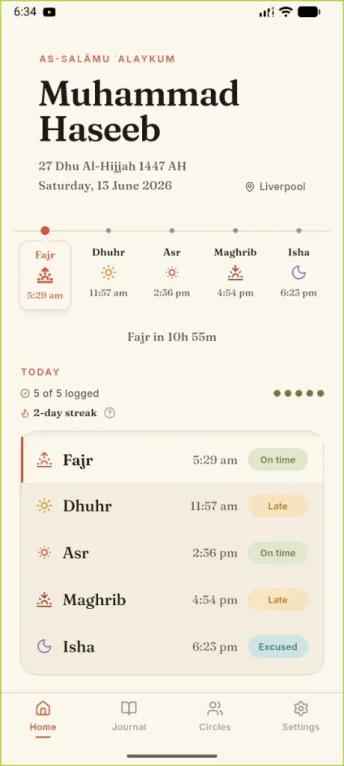
The Home tab centres on what matters next: your greeting, Hijri and Gregorian date, location, and a prayer timeline with countdown to the upcoming salah.
- 1
Follow the timeline
Five prayers sit along a sun arc. The highlighted prayer is current or next, with its adhan time underneath.
- 2
Check today's summary
The TODAY row shows how many prayers you've logged and your personal streak. Tap the streak info icon to see how qualifying days work.
- 3
Review today's log
Scroll the prayer list to see each salah with its time and status badge — on time, late, excused, or missed — without opening the journal.
- 4
Tap a prayer to log
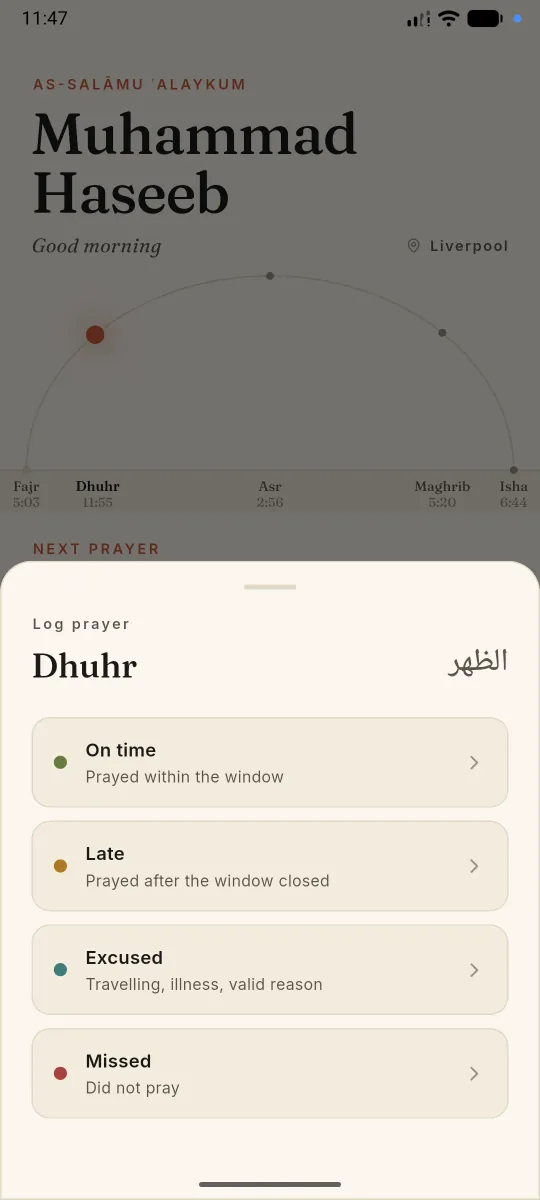
Select any row to open the log sheet. You can mark a prayer before or after its window; pending prayers show until you log them.
Logging
Mark each prayer honestly
Logging is quick and non-judgmental. Pick the status that fits what happened — the journal uses these colours to show patterns, not to score you.
- 1
On time
You prayed within the window you consider on time for that salah.
- 2
Late
You prayed, but after your usual on-time window. Useful for noticing drift without marking a miss.
- 3
Excused
A valid reason kept you from praying as usual — travel, illness, or similar. Excused days can still count toward streak rules when all required prayers are covered.
- 4
Missed
You did not pray that salah. Honest misses help the journal surface where support might help.
Tip: You can change a log later from Home or by tapping a day in the journal's Daily rhythm chart.
Journal
Your journey & streak
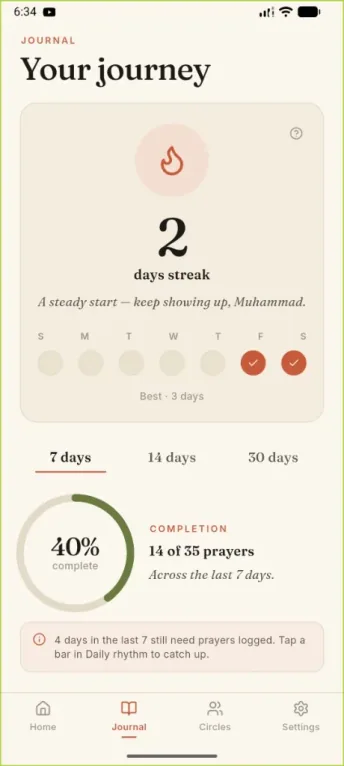
Open the Journal tab for a wider view of consistency. The journey card celebrates showing up — streaks count qualifying days, not perfection on every prayer.
- 1
Read your streak message
The hero card shows your current qualifying-day streak and a short note based on how you're doing.
- 2
Track the week
Circles for each weekday fill when that day qualified. Empty circles are days still in progress or not yet qualifying.
- 3
See your best run
Best streak appears at the bottom of the card so you can compare today's rhythm with your longest stretch.
Journal
Daily rhythm & completion
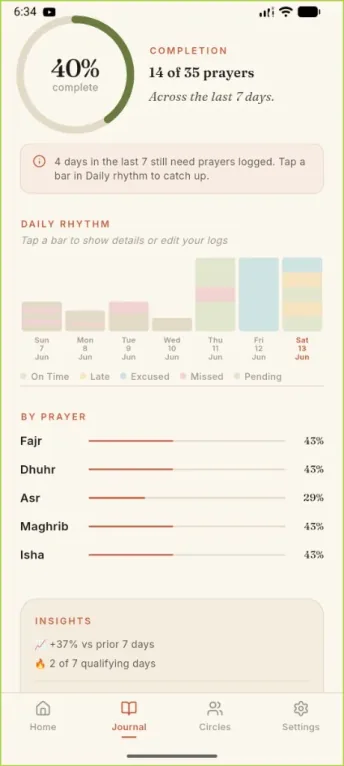
Below the journey card, switch between 7, 14, or 30 days to study habits over time. The completion ring and bar chart make gaps easy to spot.
- 1
Pick a time window
Use the 7 / 14 / 30 day tabs. Stats and charts update for that range.
- 2
Read the completion ring
The percentage is logged prayers out of all prayers in the window — for example, 14 of 35 across seven days.
- 3
Scan the daily rhythm chart
Each bar is one day, split by status colour. Tap a bar to open that day's details or fix logs you forgot.
- 4
Compare by prayer
The By prayer section shows which salah you log most consistently in the selected window.
Tip: If the app says days still need logs, tap the matching bar in Daily rhythm to catch up.
Journal
Insights & miss patterns
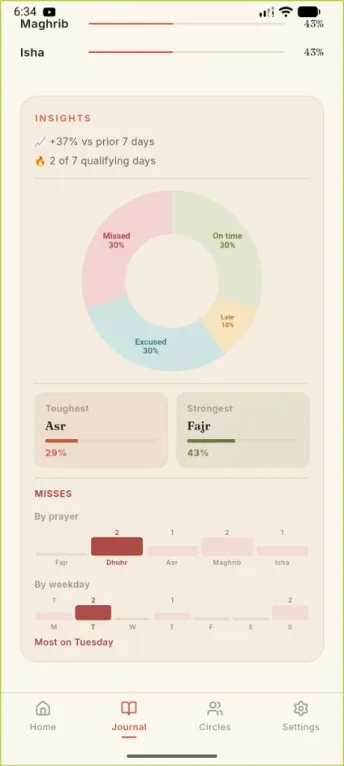
Scroll further for a breakdown of how you prayed in the window — and where misses cluster — so you can adjust gently, not obsessively.
- 1
Status mix
The donut chart shows the share of on time, late, excused, and missed prayers in the period.
- 2
Toughest & strongest
Side-by-side cards highlight which prayer you log least and most often — a quick read on where focus helps.
- 3
Misses by prayer and weekday
Bar charts show which salah and which day of the week see the most misses, with a short summary such as most on Tuesday.
- 4
Trend vs prior week
The insights header compares completion to the previous window and counts qualifying days in the range.
Circles
Circles & gentle nudges
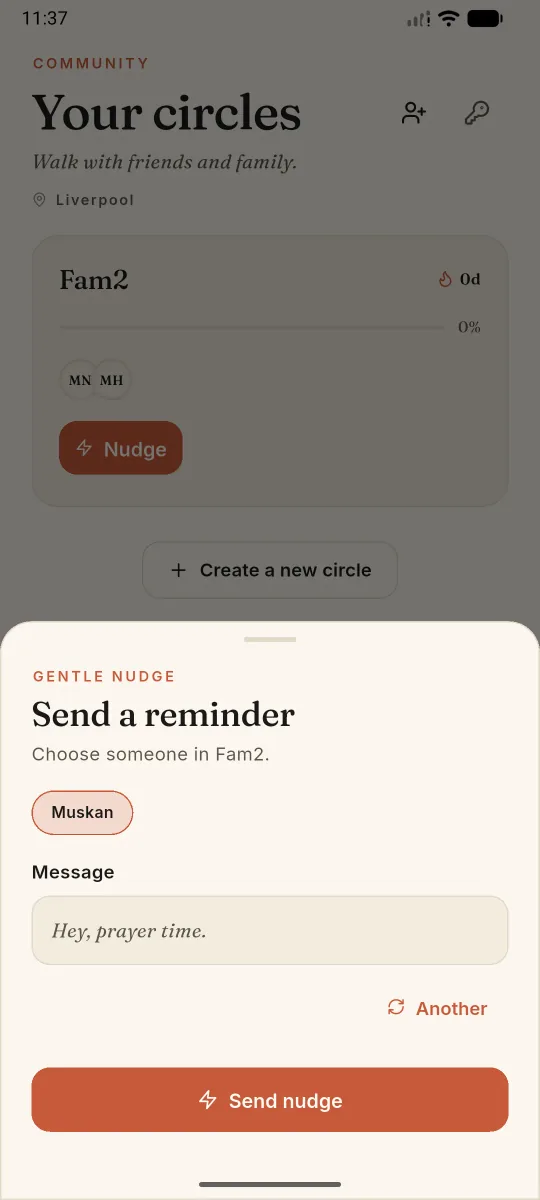
Circles are small accountability groups — family or friends you trust. Members see each other's logged status and can send a short nudge reminder.
- 1
Create or join
Start a circle and share the invite, or join with a code from someone else. You need a linked Google account.
- 2
Check the member list
Each row shows who has prayed which salah today. Pull to refresh if someone just logged.
- 3
Send a nudge
Select one or more members and send a gentle reminder. Use nudges sparingly — they're meant to uplift, not nag.
- 4
Manage your circle
Rename the circle, copy the invite, or remove members from the manage sheet. Only owners can change membership.
Tip: Free tier limits how many circles you can join; SalahMate Pro unlocks unlimited circles and nudges.
Fajr
Smart Fajr alarm
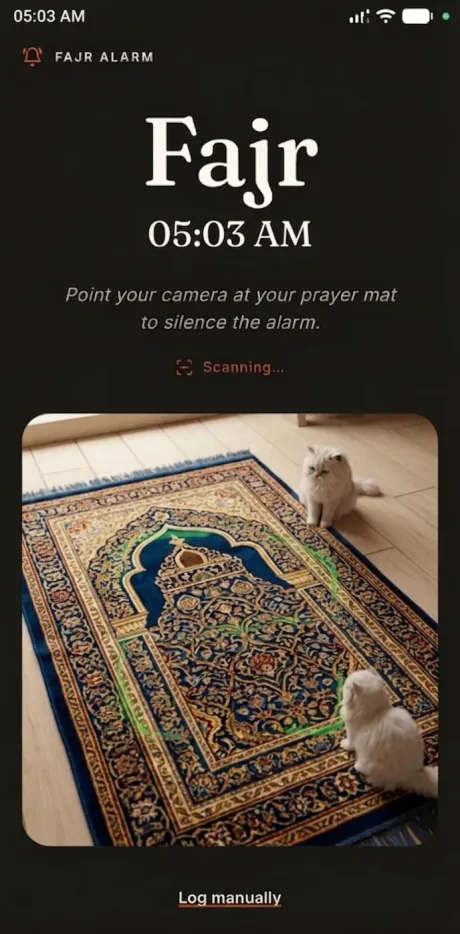
The Fajr alarm is a dedicated wake-up flow at adhan time. Optional camera verification asks you to scan a prayer mat with on-device ML before the alarm silences.
- 1
Enable in Settings
Turn on the Fajr alarm and grant alarm, notification, and camera permissions if you use mat verification.
- 2
Wake to the alarm screen
When Fajr fires, a full-screen alarm opens with snooze and dismiss controls.
- 3
Verify with your mat (optional)
Point the camera at a prayer mat. Processing stays on your phone — images are not uploaded for this check.
- 4
Pause when you need to
Snooze or skip if circumstances require it. The goal is a serious wake-up, not punishment.
Android
Reminders & focus mode
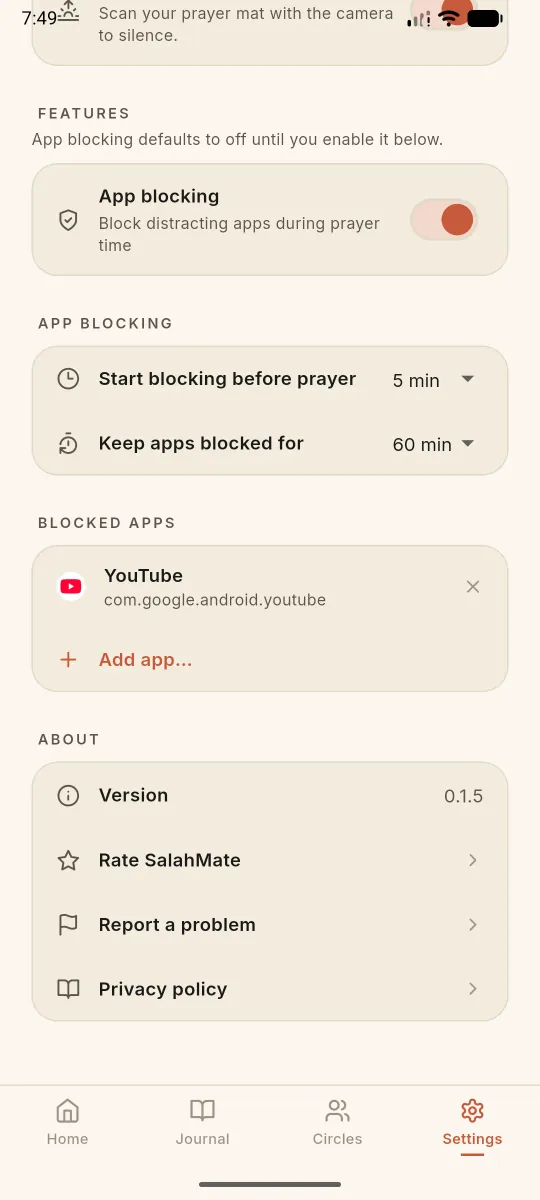
Settings holds calculation method, reminder timing, blocked apps, and account options. App blocking is optional and off until you turn it on.
- 1
Prayer reminders
Choose how many minutes before each prayer you want a local notification. Pro unlocks longer reminder windows.
- 2
Enable app blocking
Toggle focus mode and grant Accessibility permission. Pick which apps to block during prayer windows you configure.
- 3
What happens when blocked
Opening a blocked app during an active window shows a calm overlay. Confirm you've prayed to continue, or wait until the window ends.
- 4
Sync & account
Link Google, adjust timezone sync, or sign out. Prayer logs and circles follow your account when signed in.
Tip: Blocking windows start before each prayer and stay active until you log that prayer or the horizon elapses.
Ready to build your rhythm?
Download SalahMate on Android and start with today's next prayer.