SalahMate

Help guide

How to use SalahMate

Step-by-step help for prayer times, logging, the journal, circles, the Fajr alarm, and optional focus mode. Calm and practical — built for real days, not perfect ones.

Set up SalahMate

After installing from Google Play, onboarding walks you through location, notifications, and signing in with Google.

  1. Allow locationSalahMate needs your location (or a place you pick) to calculate today's prayer times. You can change calculation method later in Settings.
  2. Turn on remindersEnable notification permission if you want local prayer reminders and the Fajr alarm. You control which alerts are on.
  3. Sign in with GoogleA Google account keeps your logs, circles, and settings backed up across devices. If you used SalahMate as a guest on an older version, signing in keeps the prayers you already logged.

SalahMate app icon Location · Reminders · Google

Read the day at a glance

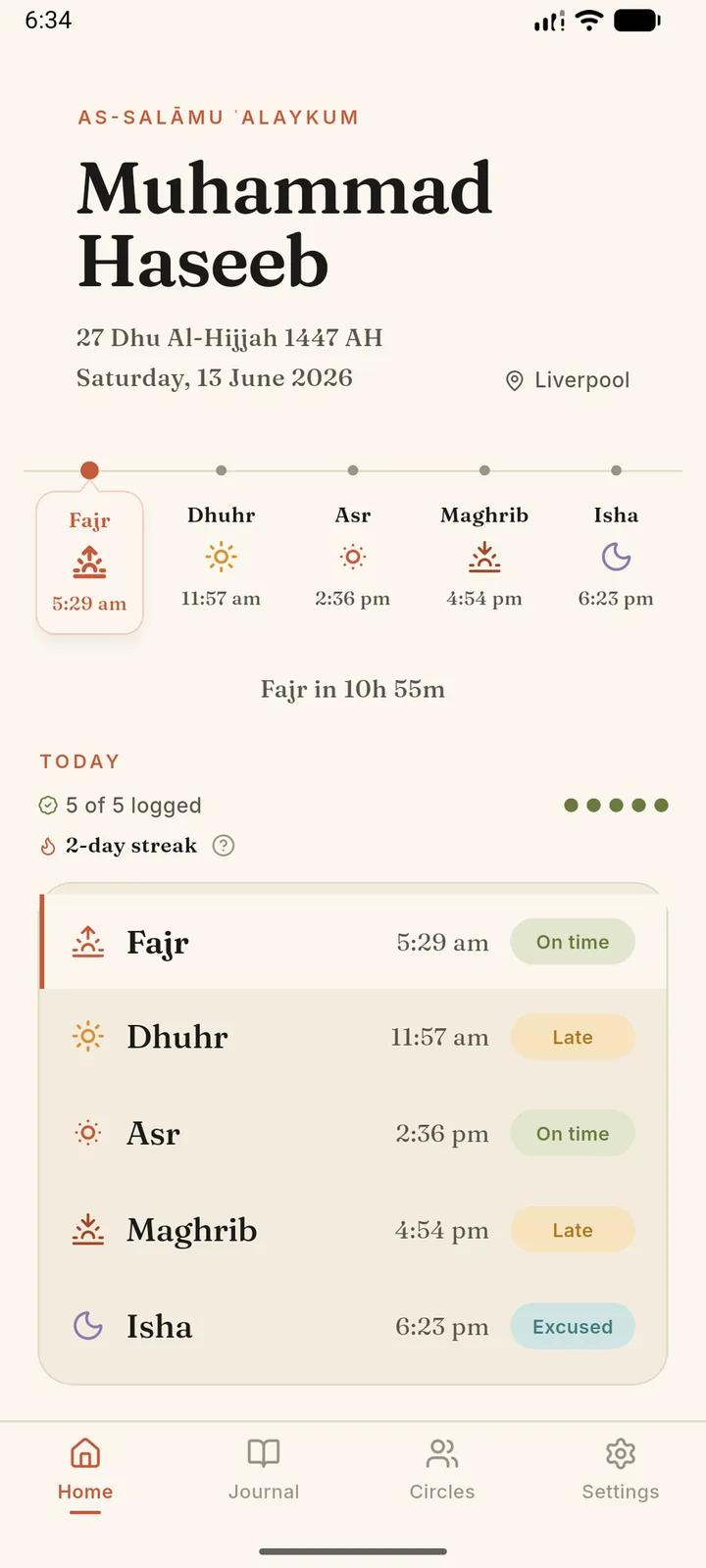
The Home tab centres on what matters next: your greeting, Hijri and Gregorian date, location, and a prayer timeline with countdown to the upcoming salah.

  1. Follow the timelineThe five prayers sit along the top. The highlighted prayer is current or next, with its adhan time underneath.
  2. Check today's summaryThe TODAY row shows how many prayers you've logged and your personal streak. Tap the streak info icon to see how qualifying days work.
  3. Review today's logScroll the prayer list to see each salah with its time and status badge — on time, late, excused, or missed — without opening the journal.
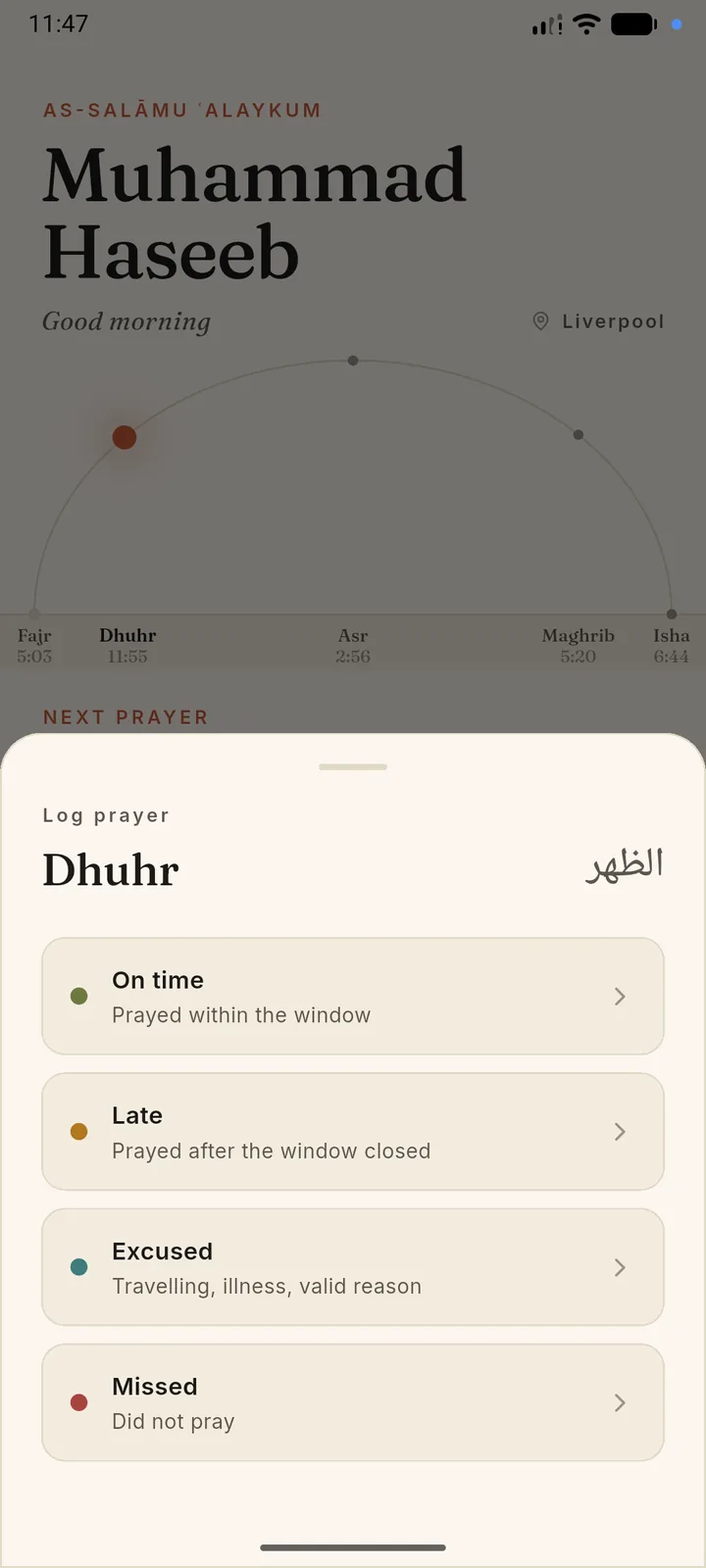
  4. Tap a prayer to logSelect any row to open the log sheet. You can mark a prayer before or after its window; pending prayers show until you log them.
SalahMate home with prayer timeline, today's summary, and status badges

Mark each prayer honestly

Logging is quick and non-judgmental. Pick the status that fits what happened — the journal uses these colours to show patterns, not to score you.

  1. On timeYou prayed within the window you consider on time for that salah.
  2. LateYou prayed, but after your usual on-time window. Useful for noticing drift without marking a miss.
  3. ExcusedA valid reason kept you from praying as usual — travel, illness, or similar. Excused days can still count toward streak rules when all required prayers are covered.
  4. MissedYou did not pray that salah. Honest misses help the journal surface where support might help.

You can change a log later from Home or by tapping a day in the journal's Daily rhythm chart.

SalahMate log prayer sheet with on time, late, excused, and missed options

Your journey & streak

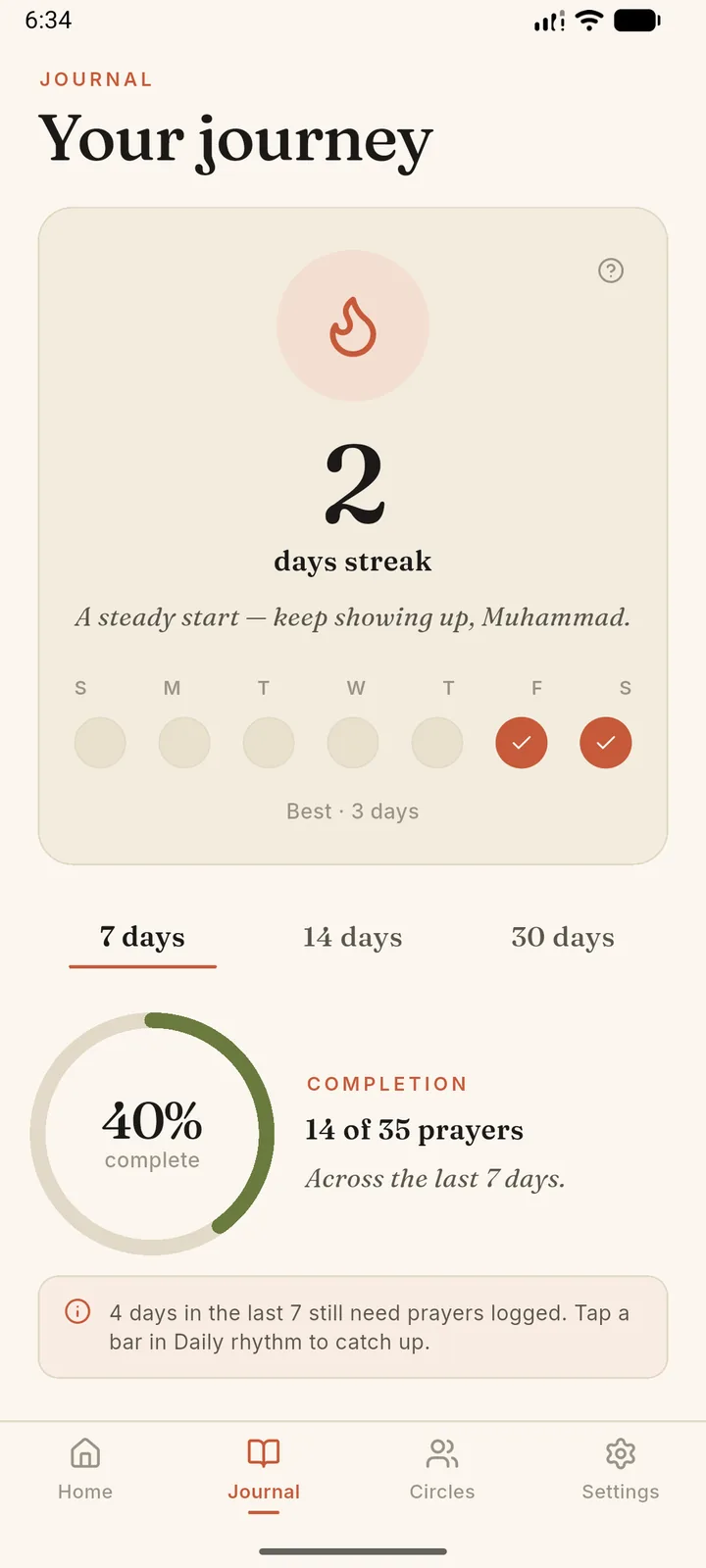
Open the Journal tab for a wider view of consistency. The journey card celebrates showing up — streaks count qualifying days, not perfection on every prayer.

  1. Read your streak messageThe hero card shows your current qualifying-day streak and a short note based on how you're doing.
  2. Track the weekCircles for each weekday fill when that day qualified. Empty circles are days still in progress or not yet qualifying.
  3. See your best runBest streak appears at the bottom of the card so you can compare today's rhythm with your longest stretch.
SalahMate journal journey card with streak and weekly check-ins

Daily rhythm & completion

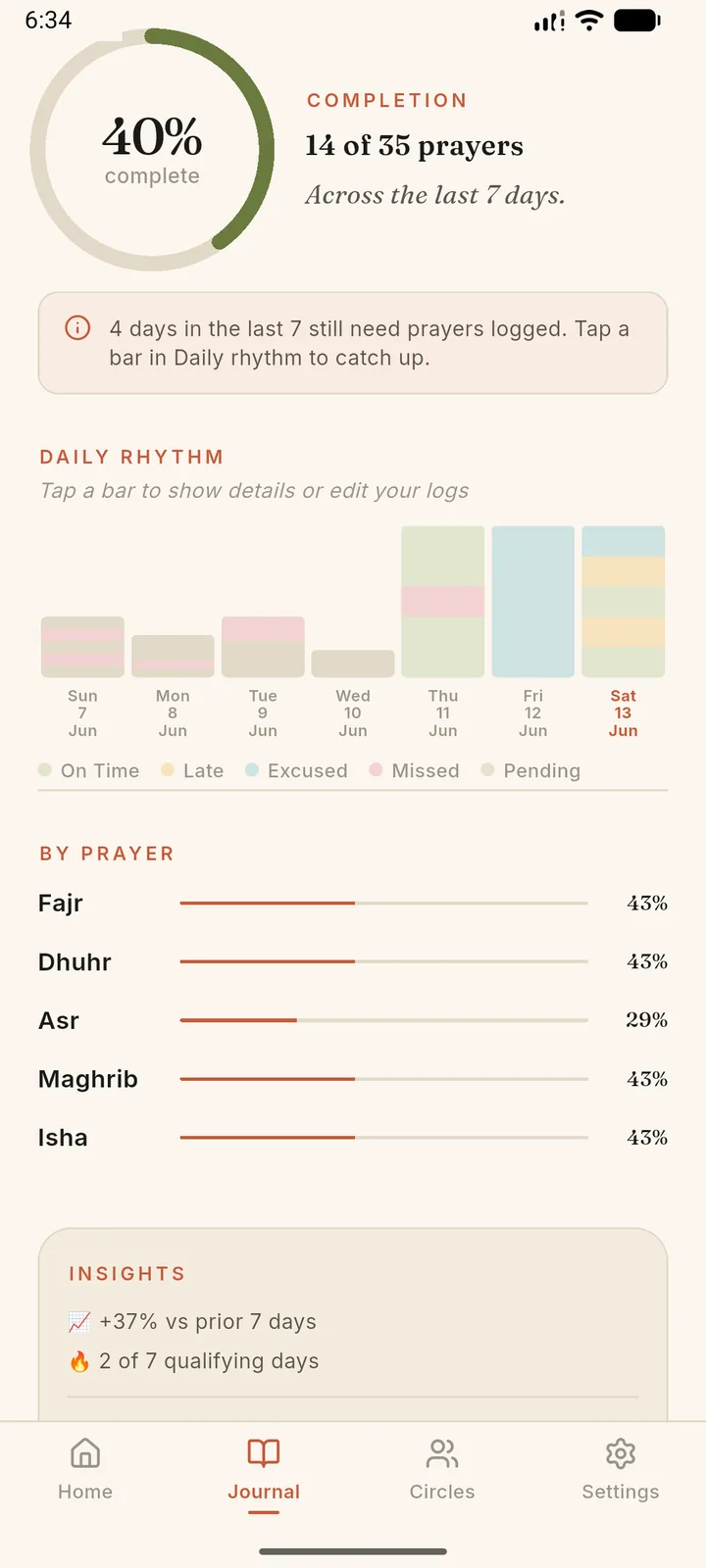
Below the journey card, switch between 7, 14, or 30 days to study habits over time. The completion ring and bar chart make gaps easy to spot.

  1. Pick a time windowUse the 7 / 14 / 30 day tabs. Stats and charts update for that range.
  2. Read the completion ringThe percentage is logged prayers out of all prayers in the window — for example, 14 of 35 across seven days.
  3. Scan the daily rhythm chartEach bar is one day, split by status colour. Tap a bar to open that day's details or fix logs you forgot.
  4. Compare by prayerThe By prayer section shows which salah you log most consistently in the selected window.

If the app says days still need logs, tap the matching bar in Daily rhythm to catch up.

SalahMate journal completion ring, daily rhythm chart, and by-prayer stats

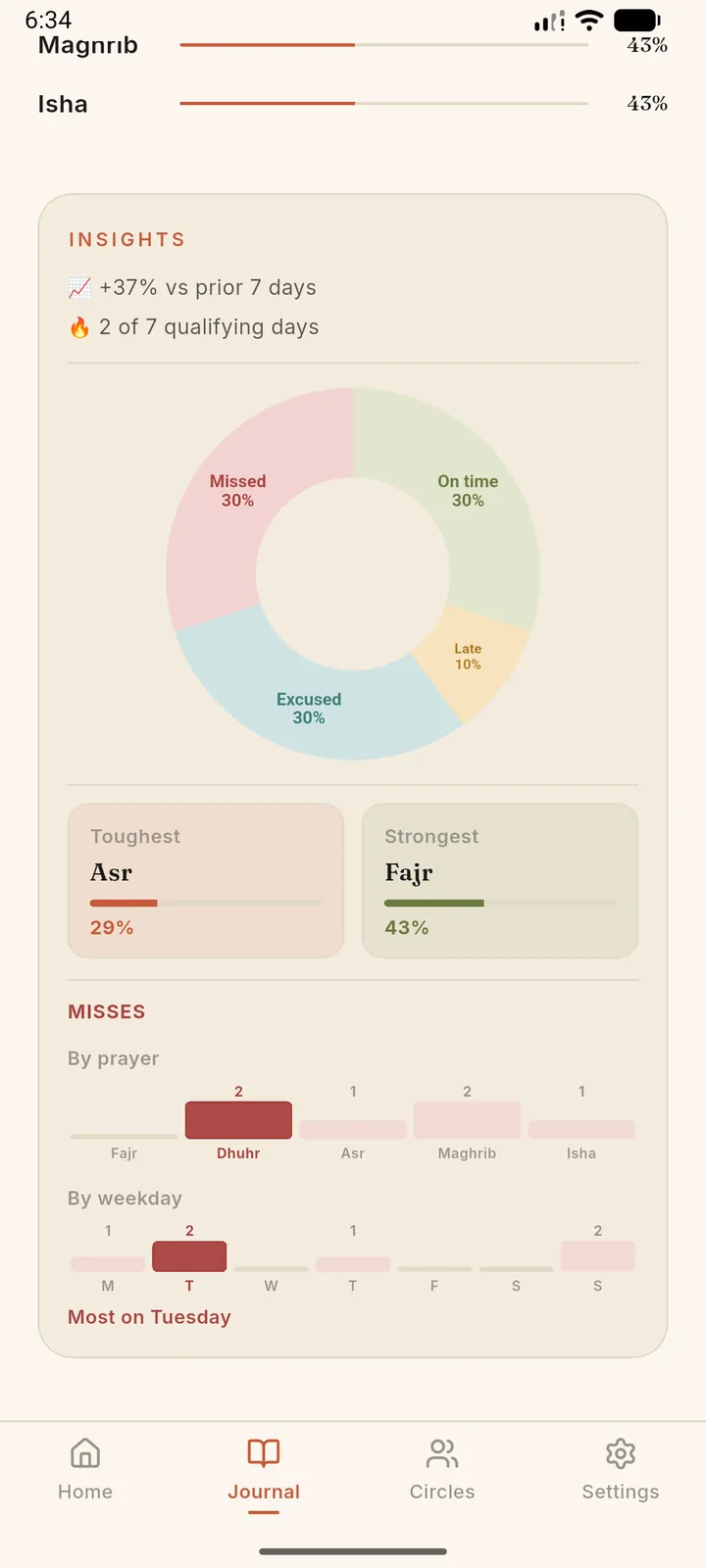
Insights & miss patterns

Scroll further for a breakdown of how you prayed in the window — and where misses cluster — so you can adjust gently, not obsessively.

  1. Status mixThe donut chart shows the share of on time, late, excused, and missed prayers in the period.
  2. Toughest & strongestSide-by-side cards highlight which prayer you log least and most often — a quick read on where focus helps.
  3. Misses by prayer and weekdayBar charts show which salah and which day of the week see the most misses, with a short summary such as most on Tuesday.
  4. Trend vs prior weekThe insights header compares completion to the previous window and counts qualifying days in the range.
SalahMate journal insights with status mix and miss pattern charts

Circles & gentle nudges

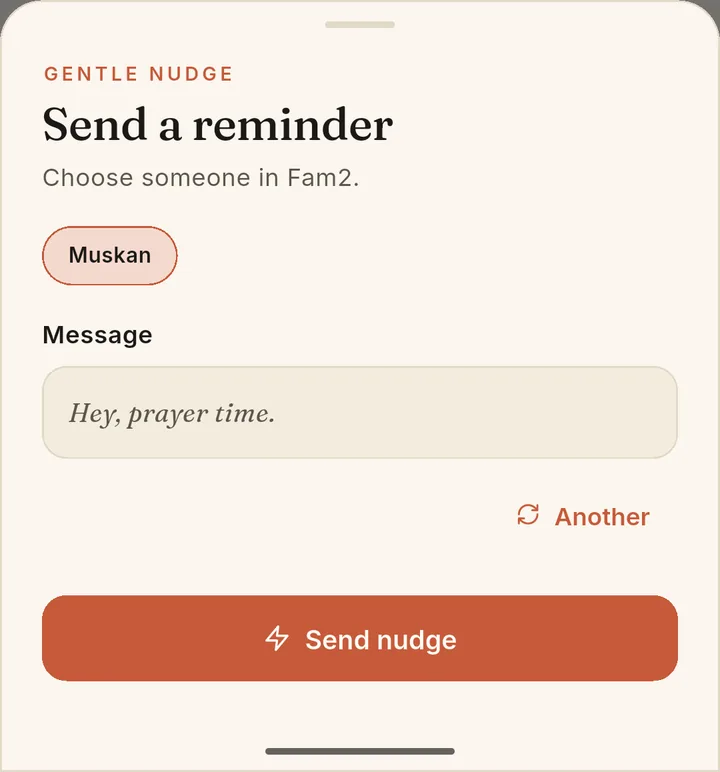
Circles are small accountability groups — family or friends you trust. Members see each other's logged status and can send a short nudge reminder.

  1. Create or joinStart a circle and share the invite link, or join with a code from someone else.
  2. Check the member listEach row shows who has prayed which salah today. Pull to refresh if someone just logged.
  3. Send a nudgeSelect one or more members and send a gentle reminder. Use nudges sparingly — they're meant to uplift, not nag.
  4. Manage your circleRename the circle, copy the invite, or remove members from the manage sheet. Only owners can change membership.

Free tier limits how many circles you can join; SalahMate Pro unlocks unlimited circles.

SalahMate gentle nudge sheet: choose someone in your circle and send a reminder

Smart Fajr alarm

The Smart Fajr alarm (Pro) is a dedicated wake-up at Fajr. It keeps ringing until you get up and log Fajr.

  1. Enable in SettingsTurn on the Fajr alarm and grant notification, alarm, and Accessibility permissions so it can open over the lock screen.
  2. Pick a wake-up timeRing at Fajr, or up to an hour earlier if you want time for suhoor.
  3. Wake to the alarm screenWhen the alarm fires, a full-screen alarm opens even if the app is closed or the phone is locked.
  4. Log Fajr to silence itTap I'm up — log Fajr and choose on time, late, excused, or missed. The alarm stops once Fajr is logged. If you've already logged Fajr, it won't ring that day.

Reminders & focus mode

Settings holds calculation method, reminder timing, blocked apps, and account options. App blocking is optional and off until you turn it on.

  1. Prayer remindersChoose how many minutes before each prayer you want a local notification. Pro unlocks longer reminder windows.
  2. Evening reminderIf some of today's prayers are still unlogged about three hours after Isha, SalahMate reminds you to finish the day. Turn it off under Evening reminder.
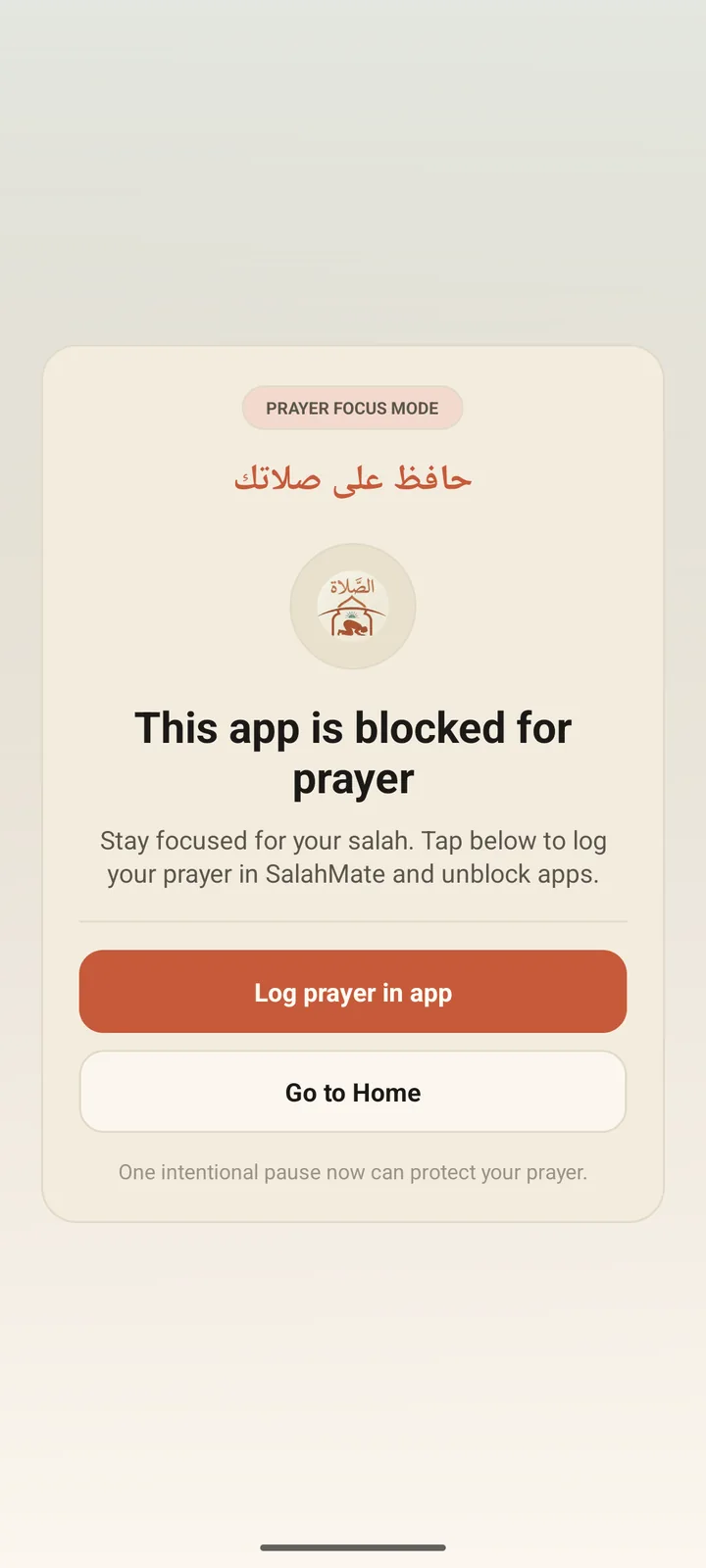
  3. Enable app blockingToggle focus mode and grant Accessibility permission. Pick which apps to block during prayer windows you configure.
  4. What happens when blockedOpening a blocked app during an active window shows a calm overlay. Confirm you've prayed to continue, or wait until the window ends.
  5. AccountSign out or delete your account. Prayer logs and circles follow your Google account across devices.

Blocking windows start before each prayer and stay active until you log that prayer or the horizon elapses.

SalahMate prayer focus mode overlay: this app is blocked for prayer